
When a new staff starts, you will need to add that person as a user onto TurnPoint first.
Please note that they will be added as a care staff automatically. So if you want to set up an admin staff, you will need to first add them as a care worker, then update their access level to admin user. Please click here to check the step.
Here is how you can add them.
<Video>
<Article>
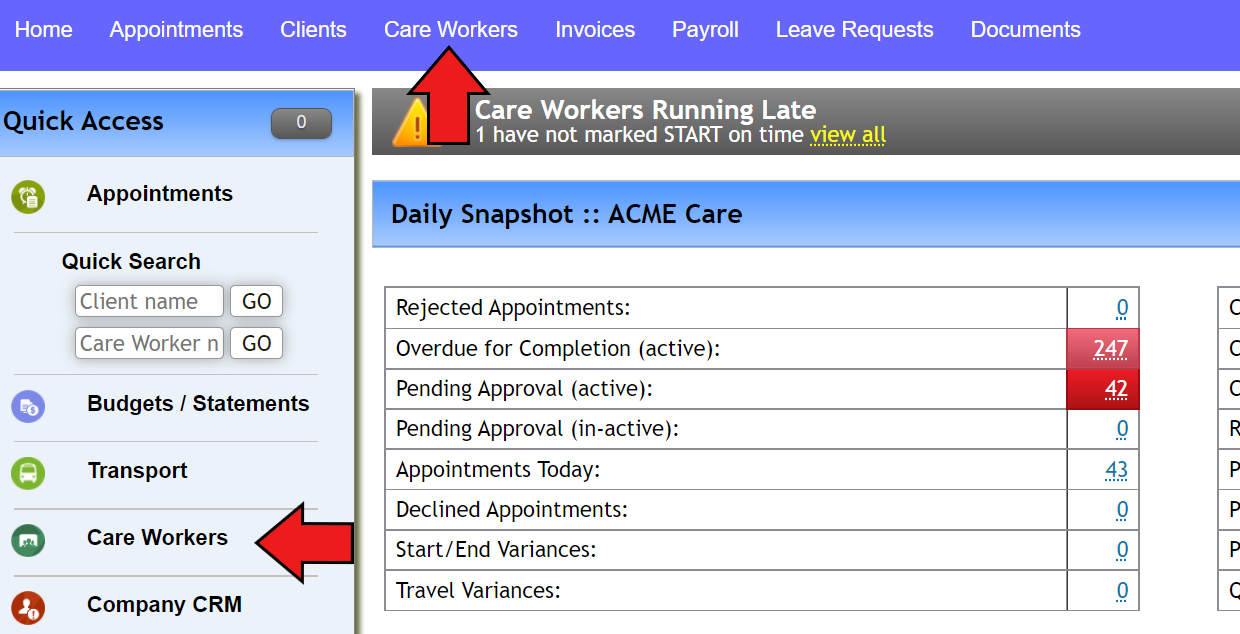
1. Click on “Care Workers” on the top of the screen or under Care Workers on the left hand-side menu
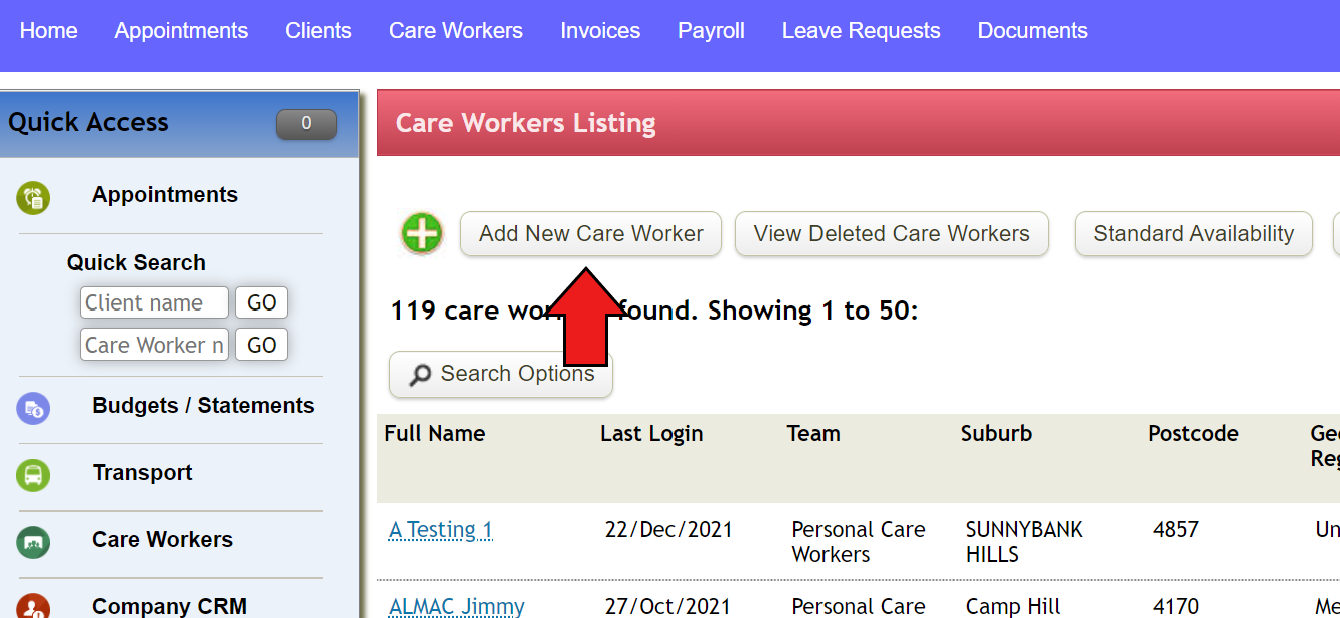
2. Click on “Add new care worker” and fill out the blanks
- email. Password: This information is for Care workers to log into the system
- User level/accounts access enabled: this can be updated through “update permissions” once completing creating a worker.
- Accounting System reference: ensure to fill out for payroll exports
- Pay Level/Group: this can be configurable
- Qualifications: list of qualifications is to be added through Other/Configuration prior to this step. Once selected, this will show up under care workers on weekly planner so scheduler can allocate appointment with relevant qualifications. If applicable, set the expiry date to the qualification and this can be reviewed through “Qualification Review” under Reports menu.
- Work sites/locations & Geographic Region: this can be configured at the back end by TurnPoint
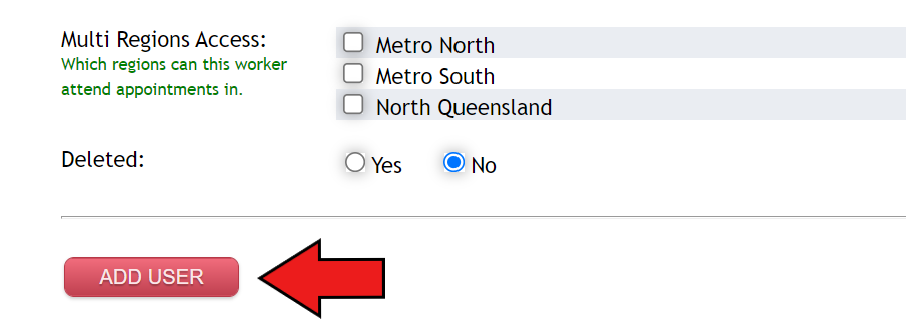
3. Click on “Add User”
As mentioned the above, user will be set up as care worker level when you first add them. If you want to grant this worker a company admin access or give access to accounts, go back to the created care worker’s page and click “update permissions” and update accordingly. The detailed process can be found here.
Comments
0 comments
Please sign in to leave a comment.