
Estimated Time to Complete: 1hr - 5hrs
Quick Overview:
Packages can be considered as the funding sources, and we recommend keeping this as simple as possible even though the system allows you to add as many as you need. You can see an example list of packages in the attachments of this article.
Packages provide a structure to identify the list of services available to a client. Packages will also drive the invoicing process that clients are attached to (i.e. NDIS packages will drive the NDIS invoicing process). They can relate to levels of care as designated by outside organisations such as the government for subsidies and/or rebates.
You can have as many packages attached to a client, but in most cases, there wouldn't be many cases for more than 1-2.
Video:
Steps:
- Determine the list of packages you will use within the TurnPoint system.
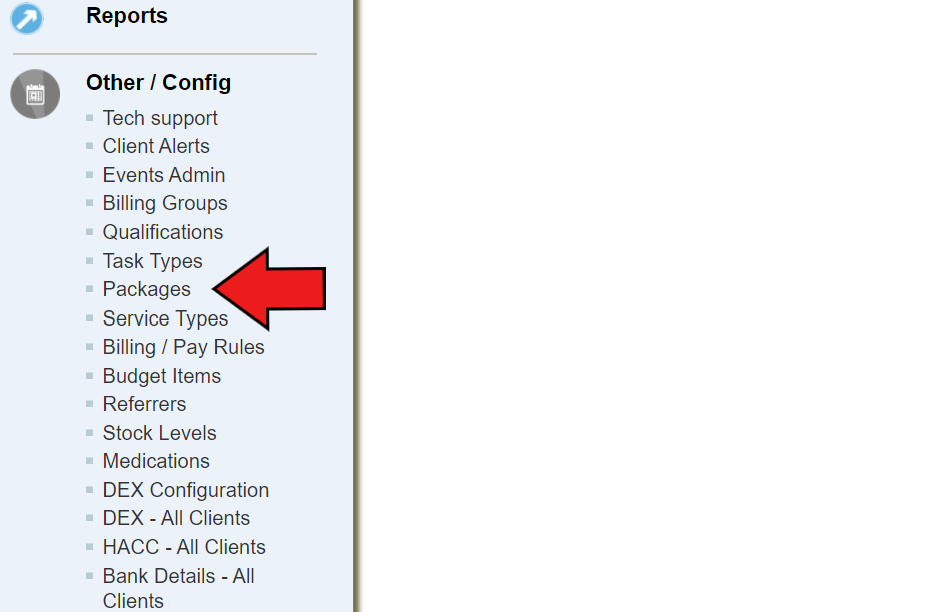
- On the left-side menu bar, scroll down to Other/config category, and click on “packages”
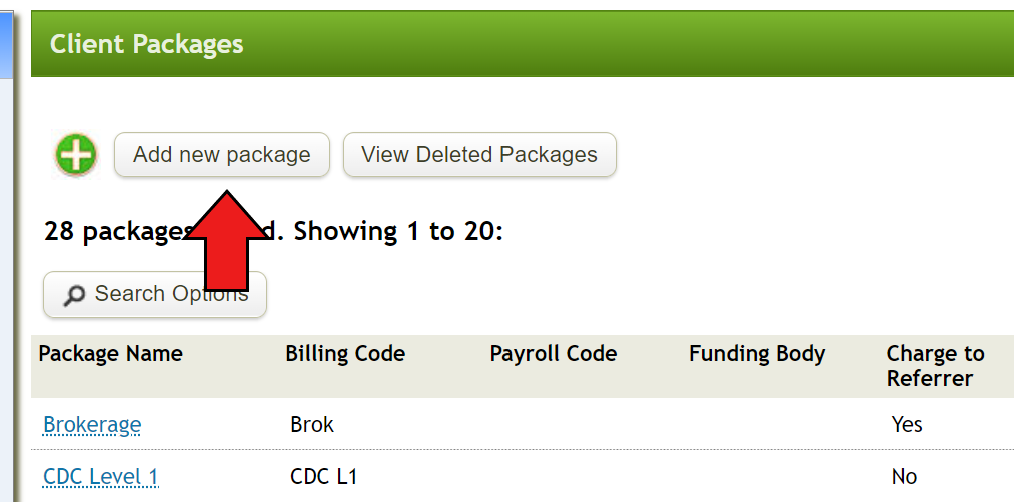
- Click on “add new package” on the main page
- Fill out blanks
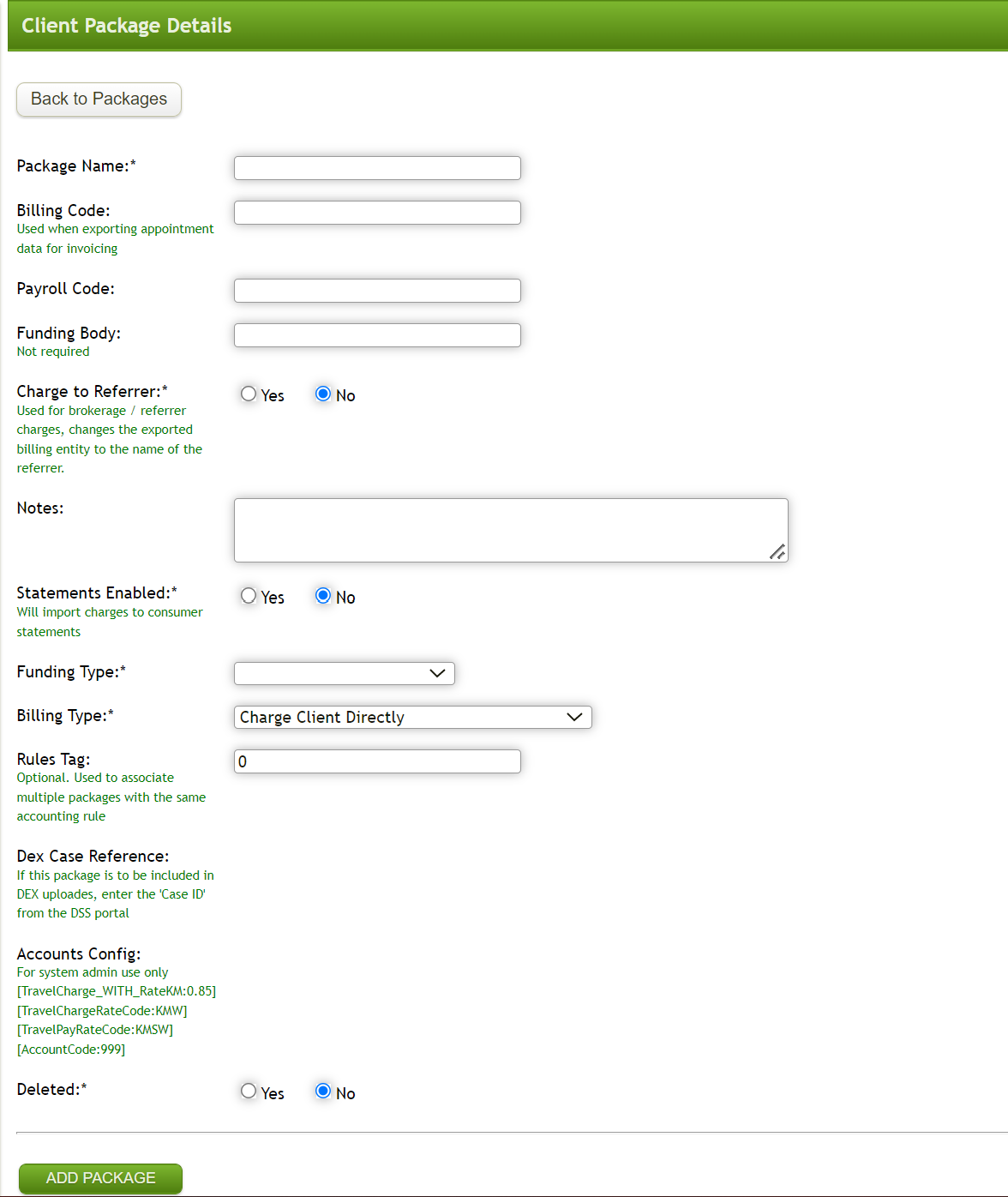
- Package Name (How you will identify each package)
- Billing Code (Code that will show up when exporting appointment data for invoicing)
- Payroll Code (Code that will show up when exporting appointment data for payroll)
- Funding Body (Not Required)
- Charge to Referrer (Used for brokerage/referrer charges, changes the exported billing entity to the name of the referrer)
- Notes
- Statements Enabled (Will import charges to consumer statements)
- Funding Type (choose the relevant option from the list based on package)
- Billing Type (choose the relevant option from the list based on package)
- Rules Tag (Leave)
- Deleted (Leave as No) - Click on “Add Package”
- Repeat Steps 2-5 for each referral on the list you made in Step 1
Checklist
This step will be completed if you have:
- Determined a list of packages you wish to add to TurnPoint
- Created Packages within the TurnPoint System
Bulk Upload
For a business that requires more than 25 Packages, you can download the Bulk Upload spreadsheet attached to this document and fill it out. Once ready to upload create a ticket at the top of this page and attach it to the ticket.
Next Article: 5 - Service Types
Comments
0 comments
Please sign in to leave a comment.