
Estimated Time to Complete: 1hr - 3hrs (dependent on the number of care workers)
Quick Overview:
This article will run you through how to add Care Workers (employees) into TurnPoint. We do offer a bulk upload if you have over 25 staff being added to the system. This process can be repeated for any new staff that join your business.
Video:
Steps:
- Pull together a list of employees that you will be adding to the system. It is recommended that when compiling this list you also take note of the following for each employee (for more information see the list in step 3):
- Name
- Gender
- Email
- Accounting System Reference
- ABN/Contractor Number
- Address
- Mobile -
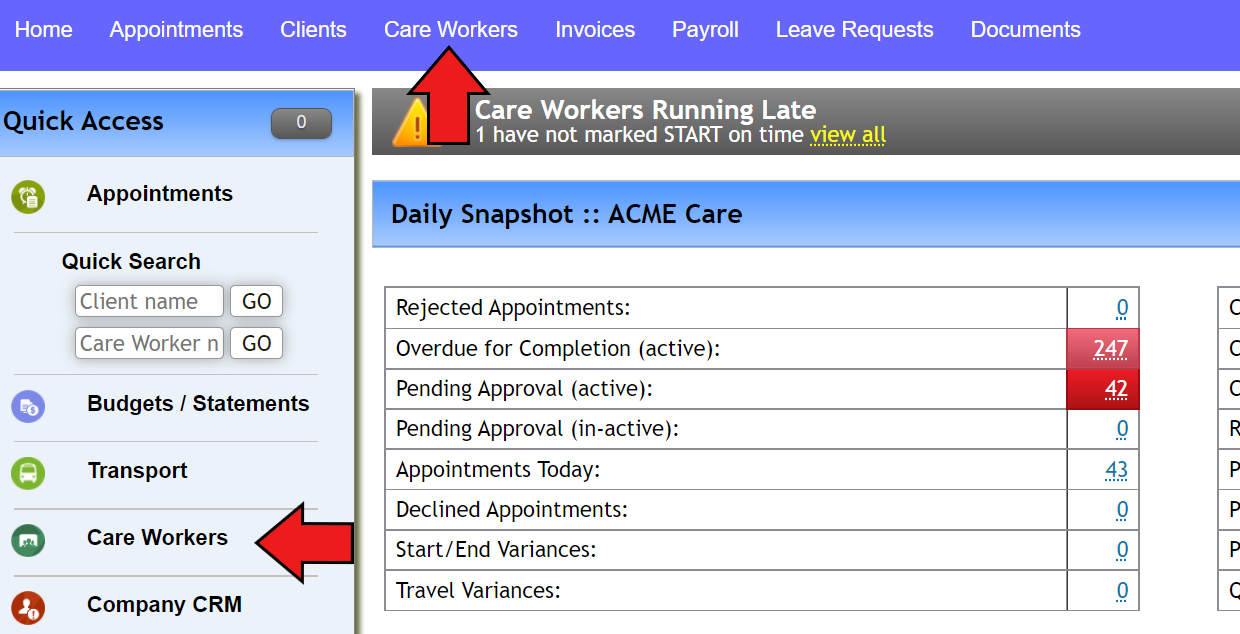
Click on “Care Workers” on the top of the screen or under Care Workers on the left-hand-side menu
-
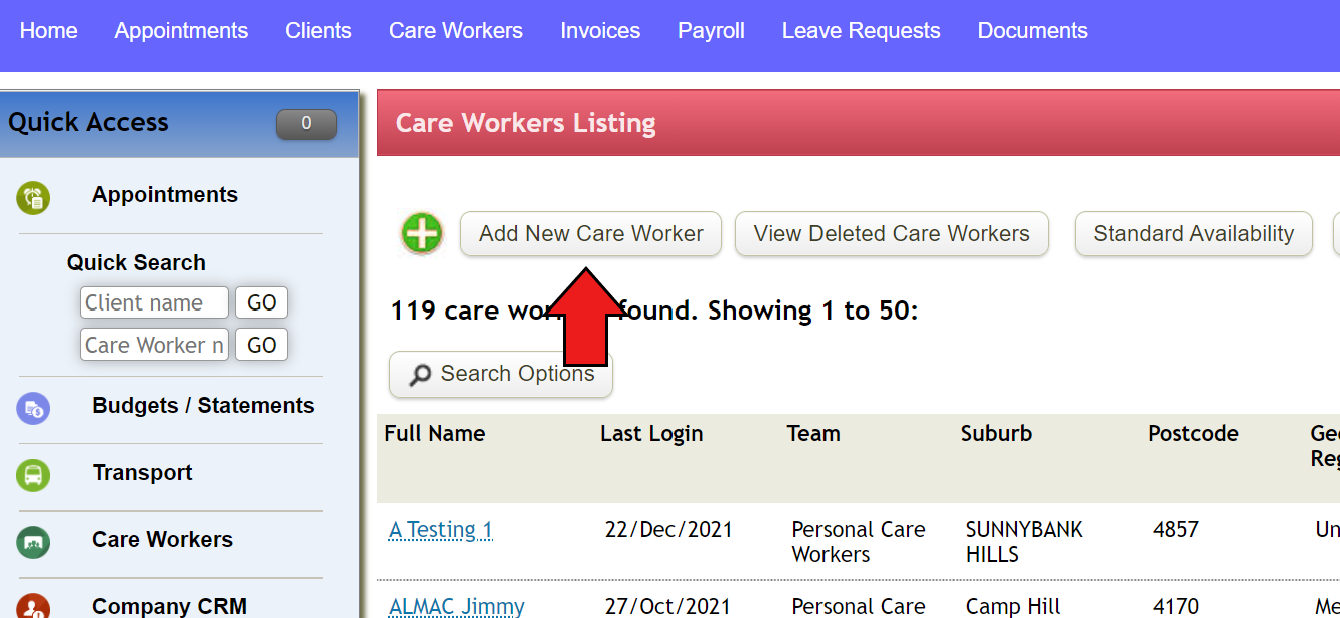
Click on “Add new care worker” and fill out the blanks
- Title
- First Name
- Surname
- Gender
- Email (used to log into the system)
- Password (Click Set-Random)
- Pay Level (Used to distinguish employees based on pay)
- Pay Group (if set up)
- Team (Select most relevant)
- Accounting System reference (defined by your payroll/accounting software - used when exporting payroll files to match up employees across the 2 systems)
- ABN Contractor Number (for external contractors)
- Case Management Account (Users in the system may be termed Case Manager, If enabled a Case Manager can be allocated to a Client, they also appear in the Case Manager drop-down box when creating a new package schedule etc, but they all have the User Level field set to "Company Admin")
- Qualifications (select relevant qualifications - this list was set up back in Article 1 of this implementation)
- Languages Spoken (if relevant)
- Allowance (if relevant)
- Address (used to determine travel - business address used as default if left blank)
- Mobile (used for notifications)
- Emergency Contact (as Required)
- Notify SMS (alert carer via mobile to any changes to same-day appointments)
- Notify Email (alert carer via email to any changes to same-day appointments)
- Get Roster Notifications (admin users only can get an Email alert when an appointment is declined/rejected)
- Date of Birth
- Rostering Notes (Appears in Weekly planner next to the care worker's name)
- Ignore Conflicts (Skip conflict warnings in the weekly planner)
- Care Worker (Tick YES if available for Client appointments)
- Enable GPS Tracking (Tracks coordinates marked in START and COMPLETE operations. User needs to enable tracking on their mobile settings in order for this to work)
- Mobile PIN Required (Prompts care worker for a 4-digit PIN after 5 minutes of inactivity)
- Mobile PIN (Use 4 numbers only)
- Travel Pay Settings (Use the drop-down menu to select the most relevant)
- Min/Max Hours per Week (Warn if min/max not met/exceeded in weekly planner)
- Employment Start/End Date
- Work Site's/Locations (as defined during set-up - Allow user to work in these work sites/locations)
- Geographic Region (Primary Region)
- Multi-Region Access (Which regions can this worker attend appointments in)
-
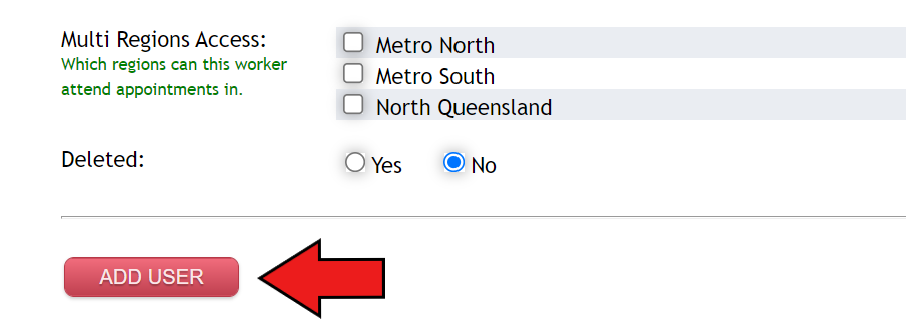
Click on "Add User"
-
Repeat Steps 2-4 for each service type identified in step 1
Checklist
You have completed this step if you have:
- Identified all employees to be added to the system
- Added all Care Workers to the TurnPoint System
Bulk Upload
To Bulk upload Care Workers, please download the bulk upload file and fill out. Once complete please click the top right button on this page "Submit a Request" and attach the completed file.
Next Article: 6.2 - Care Workers - System Access
Comments
0 comments
Please sign in to leave a comment.