
When a staff member is unable to service their assigned clients for various reasons, such as illness or taking time off, it can be challenging to manage client appointments efficiently. Fortunately, our Bulk Move function enables you to select and transfer multiple appointments from one worker to another in just a few clicks, saving you time and effort.
Step 1: Open the Weekly Planner
This can be accessed from the left hand side of the screen within the quick access menu
Step 2: Navigate to the “Display Options” tab to access “Expanded Daily View”
To transfer appointments you need to ensure that you're in the Expanded Daily View. Hover over the ‘Display Options’ button on the top of the screen and select ‘Expanded Daily View’.
Step 3: Choose the Worker you want to transfer appointments from
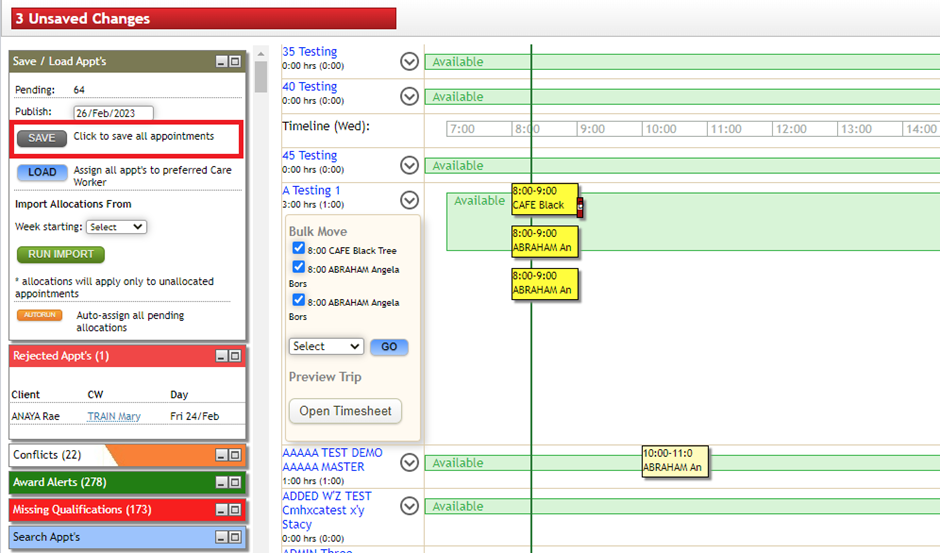
Once you're in the Expanded Daily View, locate the worker you want to transfer appointments from. Click on the arrow next to their name to reveal the bulk move function.
Step 4: Select the client appointments you want to transfer
Once you identify next available care worker, select appointment you wish to move. This can be all appointments, or you can select few.
Step 5: Choose the worker you want to transfer the appointments to
Once you select appointments to transfer, click drop down to find list of care workers. Select the worker you want to transfer the appointments to (in this case, A Testing 1 will be receiving Jimmy Almac’s clients for the day).
Step 6: Initiate the Transfer
Once you've chosen the worker you want to transfer the appointments to, click on the ‘Go’ button to initiate the transfer.
Step 7: Save the Changes
Finally, click on the ‘Save’ button on the top left hand corner of the screen to ensure that your changes are saved. This will update the client records and reassign the appointments to the new worker.
Comments
0 comments
Please sign in to leave a comment.