
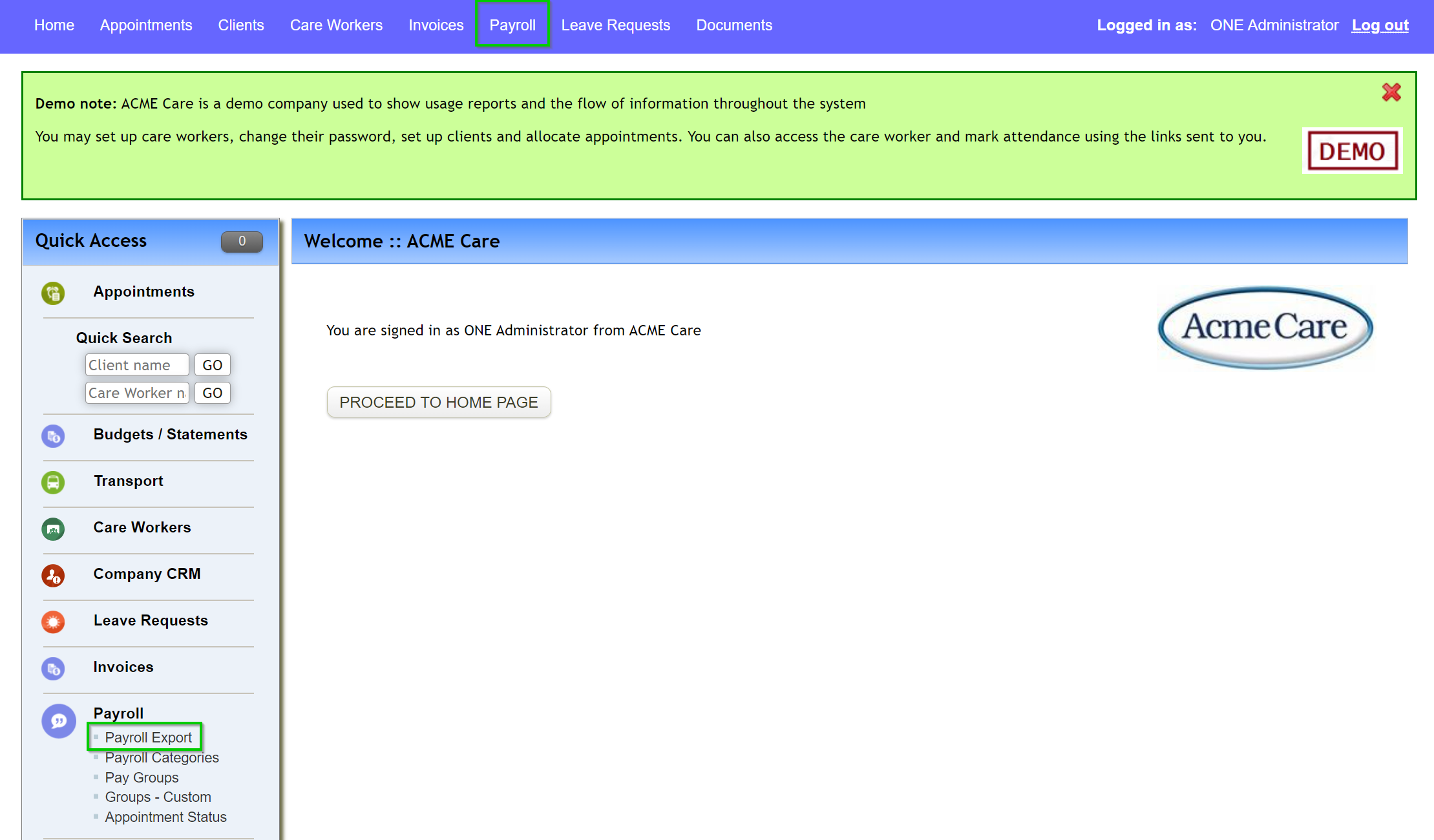
To access Payroll Export simply select either from the top header or left hand menu
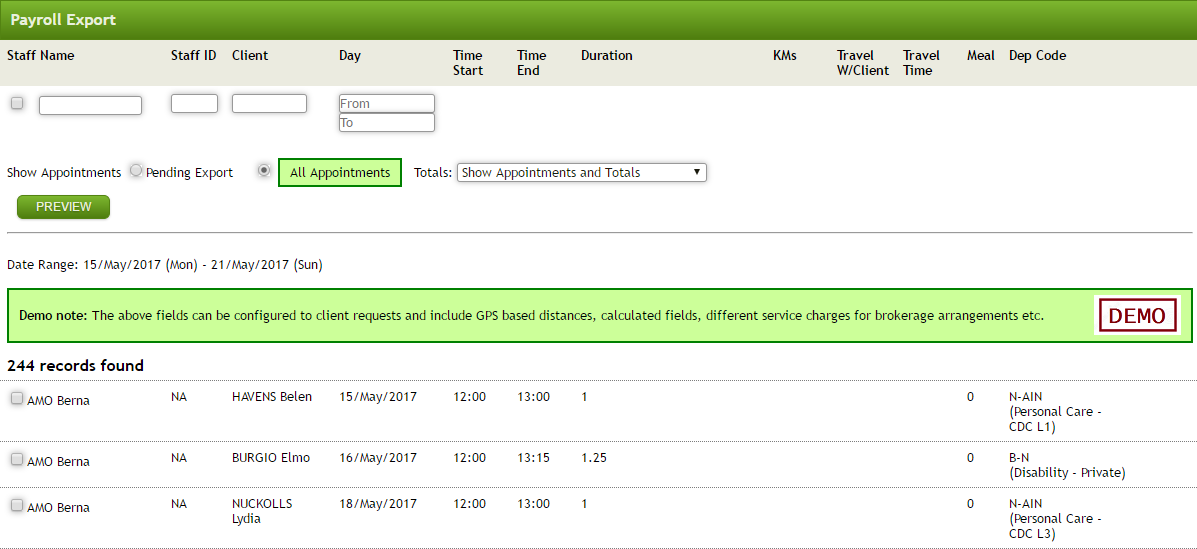
The records listed are appointments. It is normal practice to filter the list of appointments down to those to be exported.
Fields available (1 or more) to filter on are:
- Staff Name,
- Staff ID,
- Client Name,
- Date From and To,
- Appointments Pending Export or All Appointments
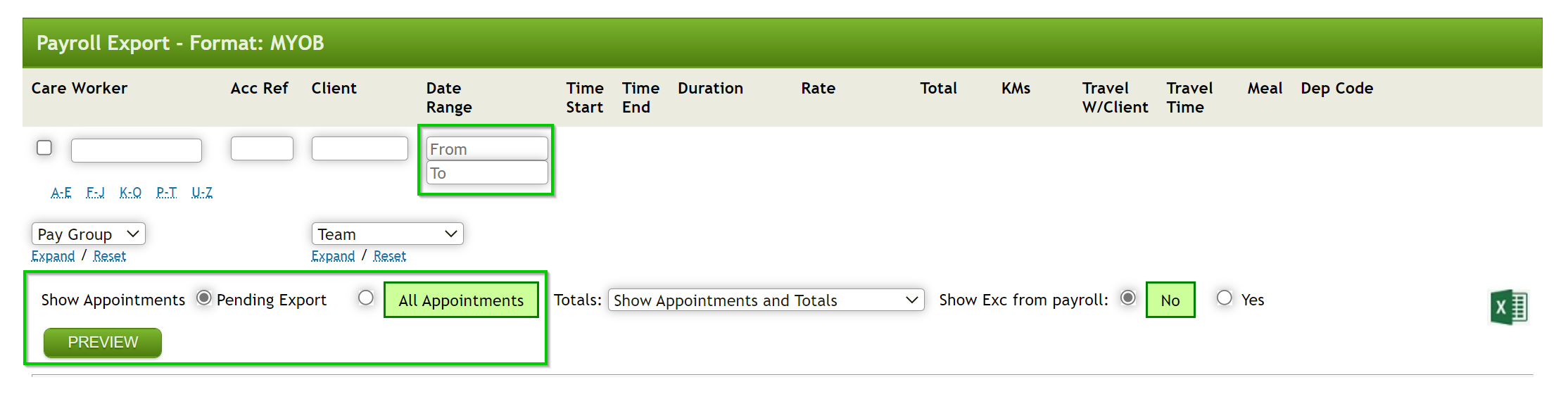
In a normal cycle, the Date Range, From and To, is all that is required.
Selecting the Preview button will apply the filter to the set of records.
Select the check box under “Staff Name” to select all of the filtered records for export. Alternatively, select the check boxes alongside each individual appointment required.
Select the check box “Mark Selected as Added to Payroll” at the bottom of the form. Select Download Payroll File button to create the payroll export file in .csv format. This file can be found in the same folder as your last extract on your PC.
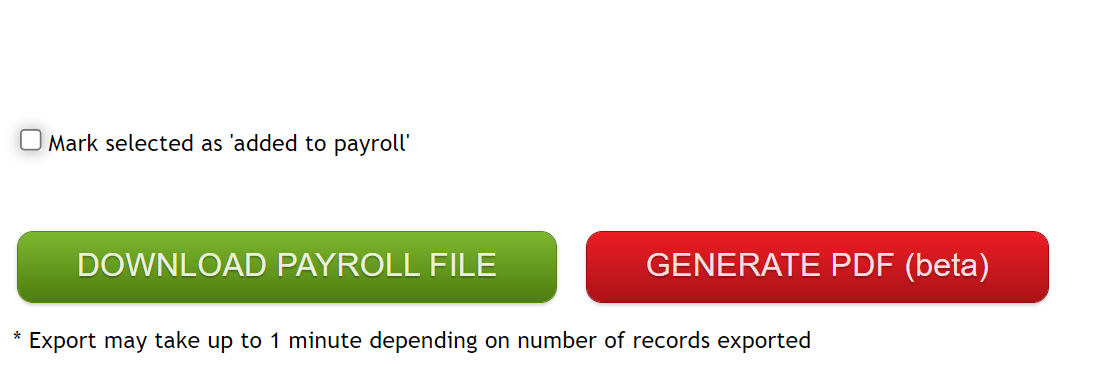
Refer to instructions regarding your payroll system package to complete the file import process. A .pdf file of the payroll report as viewed on the screen is available via the Generate PDF button.
Depending on award and other staff arrangements, configuration of payroll rules, the rates to be paid vary. This also includes any allowances for travel to and/or with the client.
Some configuration of payroll rules is contained in the Service Types –
Billing Rules section above.
Other points to note regarding payroll processing:
- Service types can be set to non-chargeable to a client but payable to staff via the payroll – eg: chemist runs, admin shifts, training in client home (buddy appointments / volunteers)
- Service types can be set to non-payable – unpaid training, group sessions
- Staff can be set to be excluded from payroll extract eg: permanent staff on regular hours or contractors. Permanent staff would be configured within the payroll system.
- Shift breaks can be pre-set to kick in when pre-defined gaps between appointments are found. This resets travel times, shift allowances, etc and prevents entry of KM travelled TO client home.
- Meal break allowances / time periods can be auto added at the end of shifts where a break was not provided, eg: 5 hour shift with no 30 min break.
- Appointment cancellations can be set to be chargeable / partially / non chargeable as well as payable, partially payable or non-payable.
- Pay rules can factor in multiple combinations – e.g. public holidays, DVA nursing care, after 8pm > all combined.
- Payroll export can auto-report travel time between client appointments.
- Rate amount
advance, e.g. higher rates to apply from 1/July. |
|
|

For any further questions, do not hesitate to get in touch: https://www.turnpointcare.com.au/contact-us
Comments
0 comments
Please sign in to leave a comment.