
* This article is to guide Care workers to update appointments on their mobile/tablet *
When you attend the appointments, it is critical to update them with correct information so your work and trip you have taken is reflected . Here is how and where you can complete your roster.
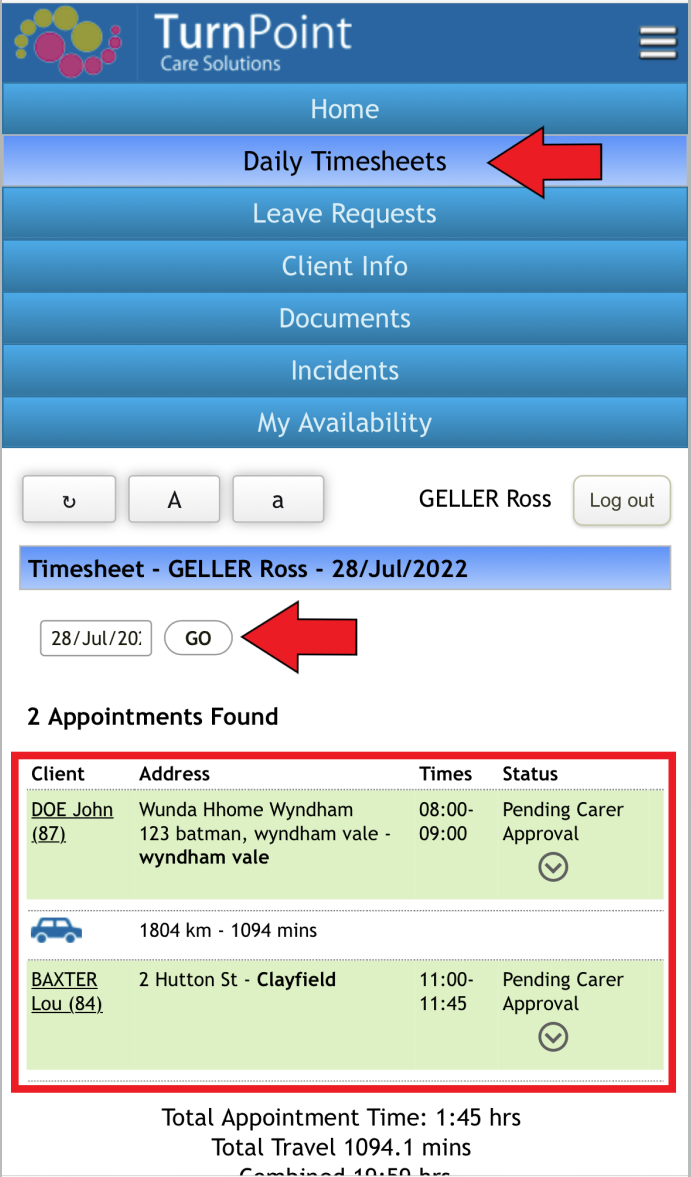
1. Go to Daily Timesheets
You can only update appointments through Daily Timesheets menu. Once you click Daily Timesheets, you will see list of appointments assigned to you per date.
2. Double check the date
It is defaulted to display the list of today's appointments, but you can move between date using this search bar. 
3. Click on the appointment you want to update, and click Start.
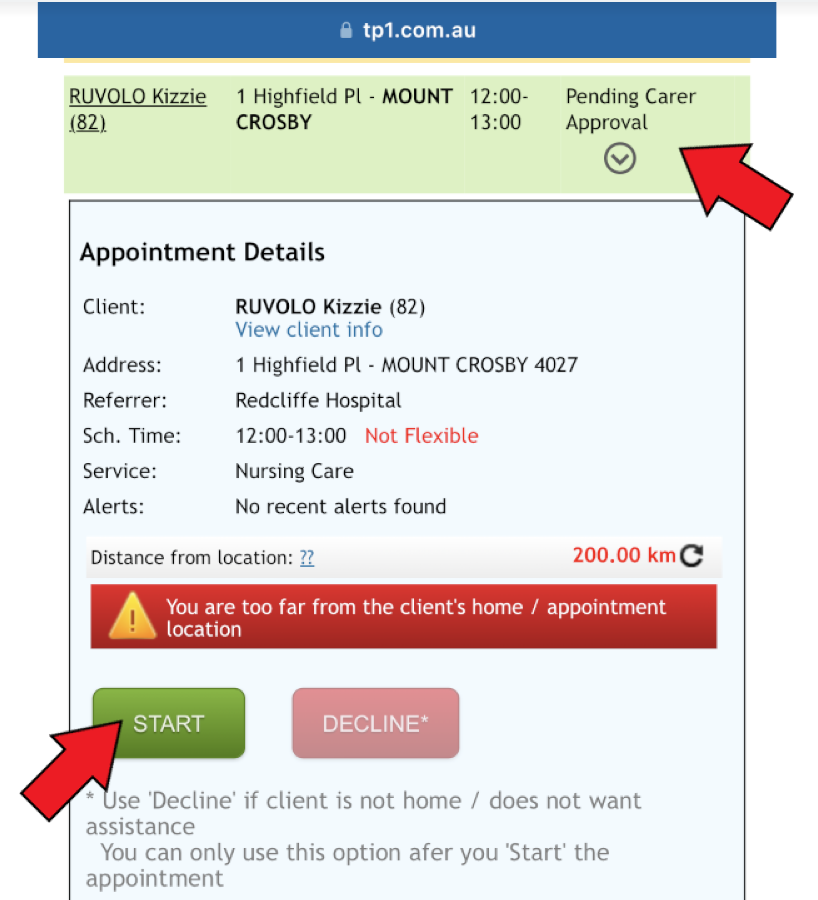
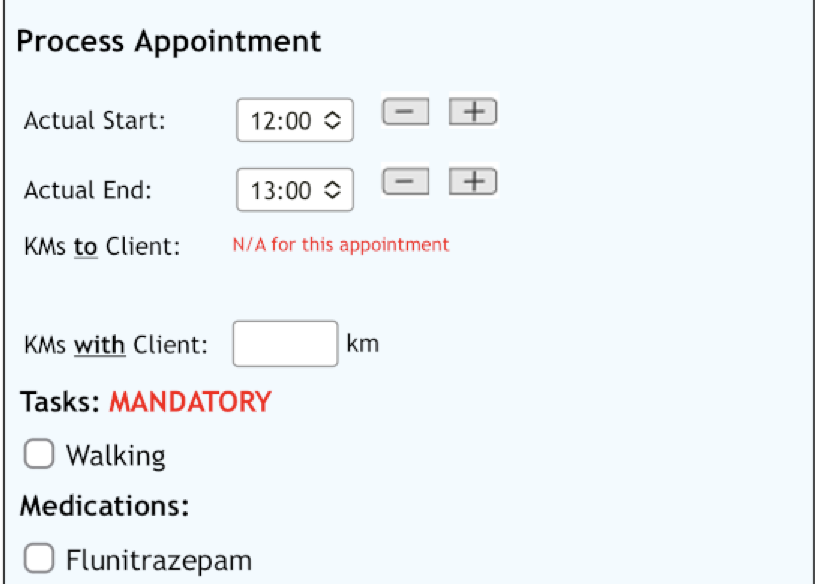
4. Fill out the details where relevant under Process Appointment
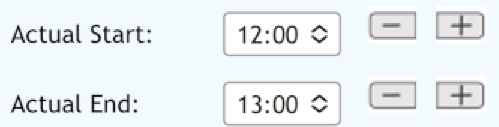 When attended at different time than scheduled time, or completed earlier/later
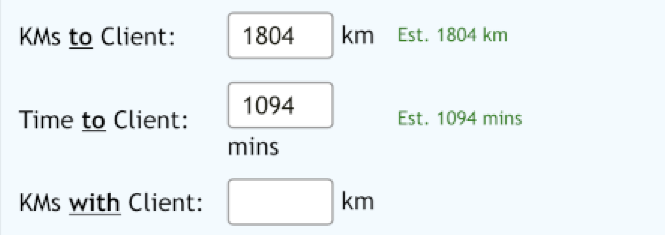 Trip distance/time that you take to go to client can be claimed through KMs to field, and if you had to take a client with you during appointment, this can be claimed through KMs with
5. Additional information can be updated
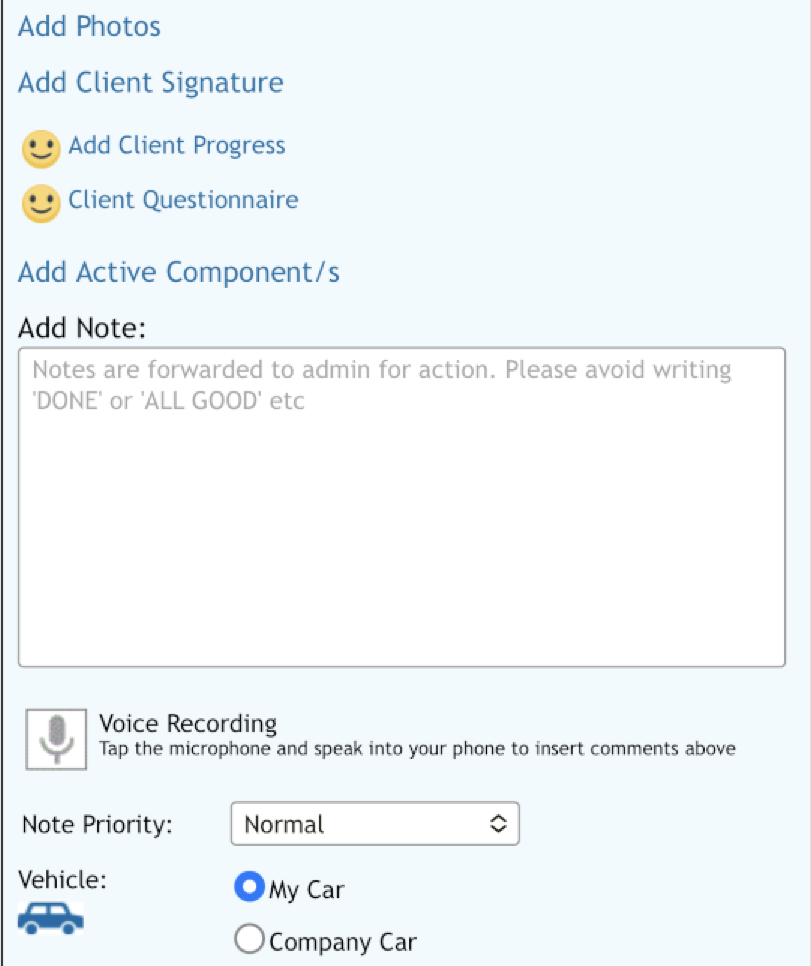
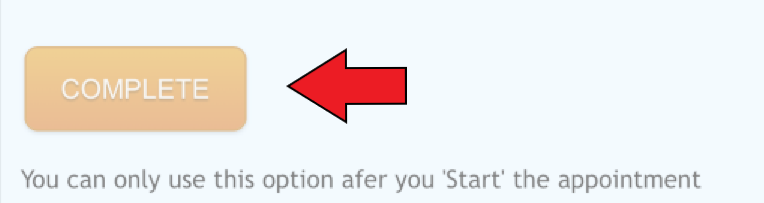
6. Once done, click Complete
Comments
0 comments
Please sign in to leave a comment.