
Appointments – Various Statuses
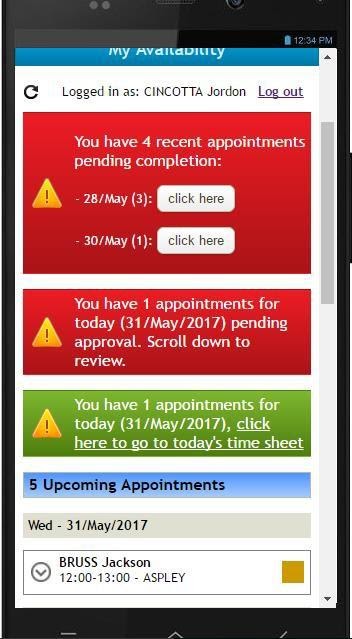
Select the Click Here button to access the appointments that require completion. These are appointments that may have been actioned but not yet marked as complete in the system. These will remain highlighted until actioned or until 1 week has elapsed.
Processing an Appointment.
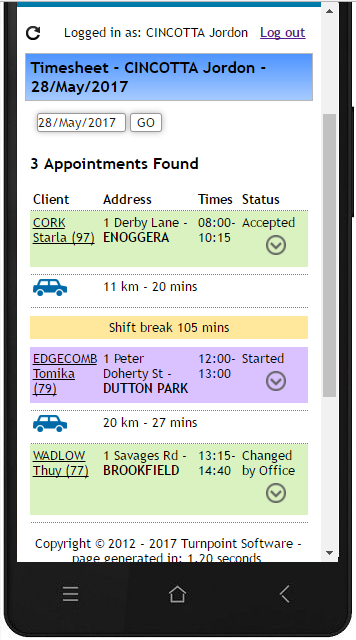
The list of appointments to action is shown. Select each one in turn in order to action each appointment.
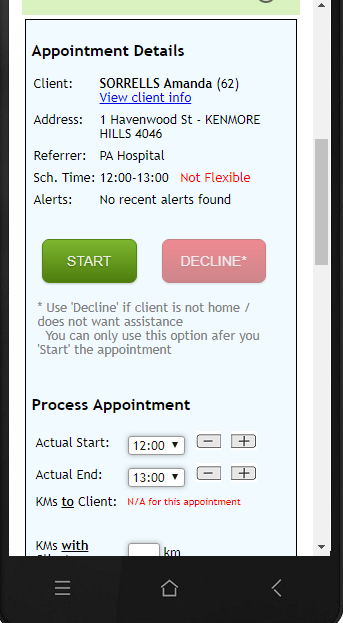
- Select Start to commence an appointment. Select the Decline button only after the Start button is selected. An appointment can be declined if the client is not at home or doesn’t want assistance that day for whatever reason. Depending on organisational policy, the appointment will be charged to the client.
- Alerts for this client will display. These are entered in the system via the Notes function. There is a setting to ensure care staff receive these alerts on their mobile device at the time of the appointment.
- Enter actual start and finish times.
- Are you travelling in your personal car or a company vehicle?
- Override Kilometres to Client. Various rules can apply here depending on organisational policy. It can be pre-calculated from Google Maps estimates, available for entry, a fixed number, N/A if appointment is first or last on a roster.
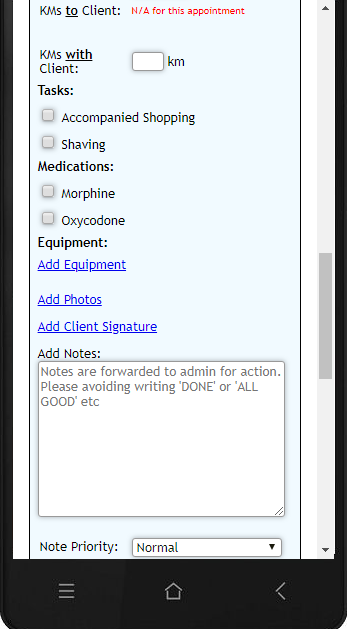
Kilometres with a Client. Enter kilometres travelled with a client on a shopping trip or similar.
- Tasks. Select tasks completed during the appointment.
- Medications. Select the medications administered if any.
- Equipment. Indicate quantities of equipment or supplies used. Select Add equipment and complete for items not on the list.
- Photos. Select Add Photos to upload a photo to be placed on file.
- Client Signature. Should it be necessary to collect a signature approving expenditure or consent then select Add Client Signature. A signature pad opens to collect the signature. A finger can be used to sign. Either Clear the pad and re-sign or accept the signature by selecting Save on the pad.
- Add any comments regarding the appointment. This will be placed on the Client notes for a client which can then be referred to by follow- up care worker staff or admin staff.
- Note Priority. Should the note require action or be urgent, set the note priority to “Requires Attention” or “Requires Urgent Attention” and it will be brought to the immediate attention of administrator staff.
- A flag is available to indicate whether a Company Car or personal vehicle was used for this appointment. This flows through to the financial records for both billing and payroll depending on your organisation’s policies and configuration.
- Select Complete to finalise the appointment.
For any further questions, do not hesitate to get in touch: https://www.turnpointcare.com.au/contact-us
Comments
0 comments
Please sign in to leave a comment.