
Mobile Interface to Turnpoint Care
Note: TurnPoint can only be accessed via web browser on a mobile device
An interface to TurnPoint dedicated to remote operation by Care staff is available by entering https://tp1.com.au into a browser on a mobile phone.
Once login, you can find instruction at the bottom of the Home Screen to add a shortcut to your phone.
To check how to navigate and what features it provides, please check the video or article below.
<Video>
<Article>
The main function of mobile view for care worker is to check the appointments assigned to them, accept, or reject, and update the time sheet.
Functions available via mobile interface are as below, and you can check more details by clicking on each function:
- Daily operations, Action Appointments Pending Completion and see upcoming appointments.
- Viewing Client Care Information and documents.
- Recording travel distance to a client’s home and with a client.
- Recording travel time.
- Collecting Client Signatures.
- Taking and recording Photos on file.
- Submit leave requests.
- Enter availability periods
- Home screen
When a care worker logs in, this is what they can see.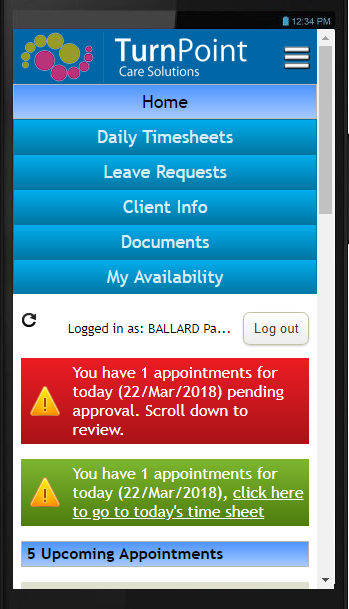
A. The list on the red field is Care worker’s overdue appointments that need to be completed/ pending appointments that need to be accepted/rejected.
B. Down below, there are upcoming appointments that a care worker hasn’t accepted yet. Care worker can either accept them all at once using this green button or do it separately.
- Click one of the appointments, and select Accept under Process appointments and click “Process”. If a care worker wants to reject, select reject and they can leave a reason then click “process”, this will then feed back into the system and show up as rejected appointments on both Daily Snapshot and weekly planner.
C. If you scroll to the bottom, you will see few more menu buttons
2. Processing appointments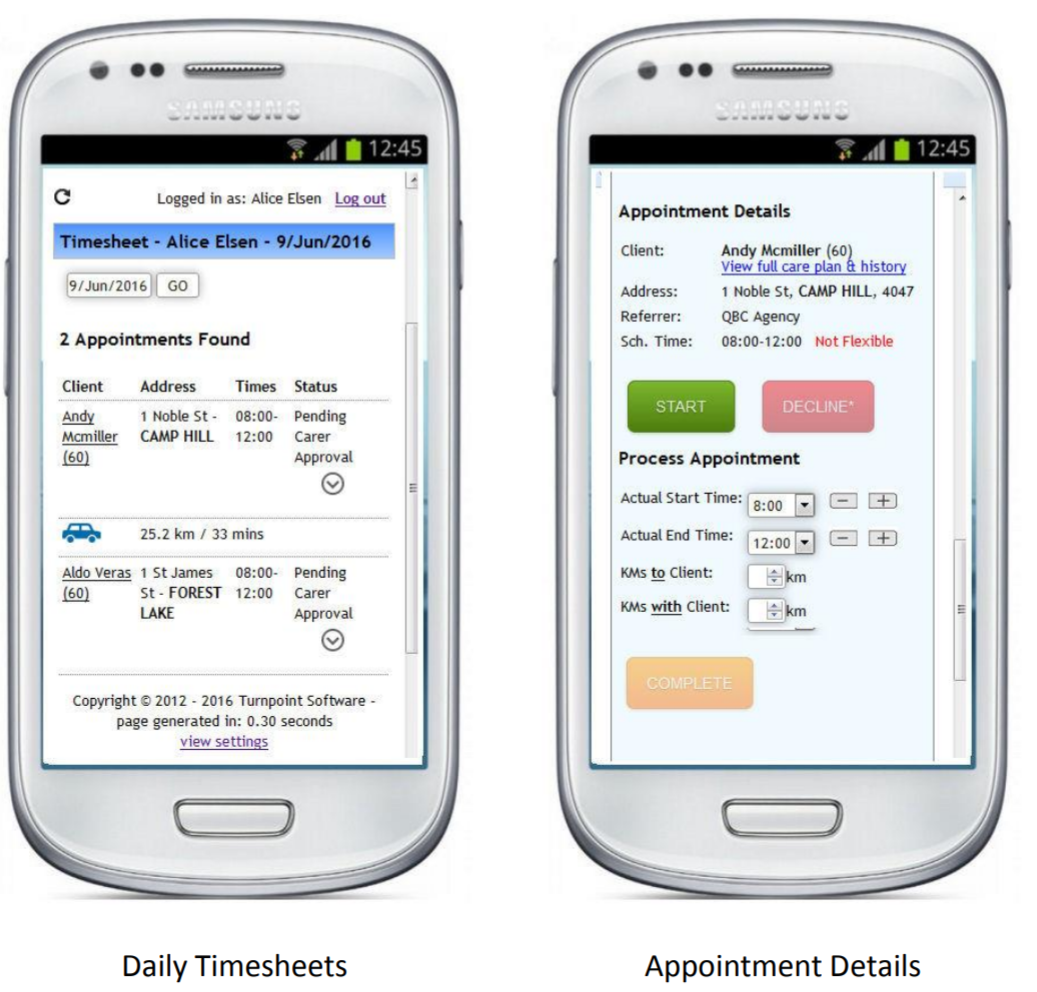
A. When you (care staff) arrive, click the appointment, and click “start”.
B. You can also adjust the actual start and end time if need be, and this will flow back into the system as a time variance on daily snapshot for a company administrator to review.
C. You can also claim the trip you took with a client for social outings or to go to shops by using “KMs to/with client”
D. In case a client or participant isn’t home or refuses service, click “Decline, and select relevant reason or leave a comment. Click Process. This will also feed back in to the system for administrator to check.
This basically how you can check your shift and complete appointments on your mobile, but if you want to check other functionality, please click here.
Comments
0 comments
Please sign in to leave a comment.