
Package can be considered as the funding sources, and we recommend to keep this as simple as possible even though the system allows you add as many as you need.
Packages provide a structure to identify the list of services to be made available to a client. They can relate to levels of care as designated by outside organisations such as the government for subsidies and/or rebates.
They are able to be made inactive at any point in time by setting the Deleted flag. Once “deleted” a package can be viewed by selecting the View Deleted Packages button. 
Existing clients associated with an inactive package should be updated to a new package. Inactive packages are unavailable for selection for new clients and when associating services to a package. The system will display an error when attempting to edit a client if they are associated with an inactive package.
<Video>
<Article>
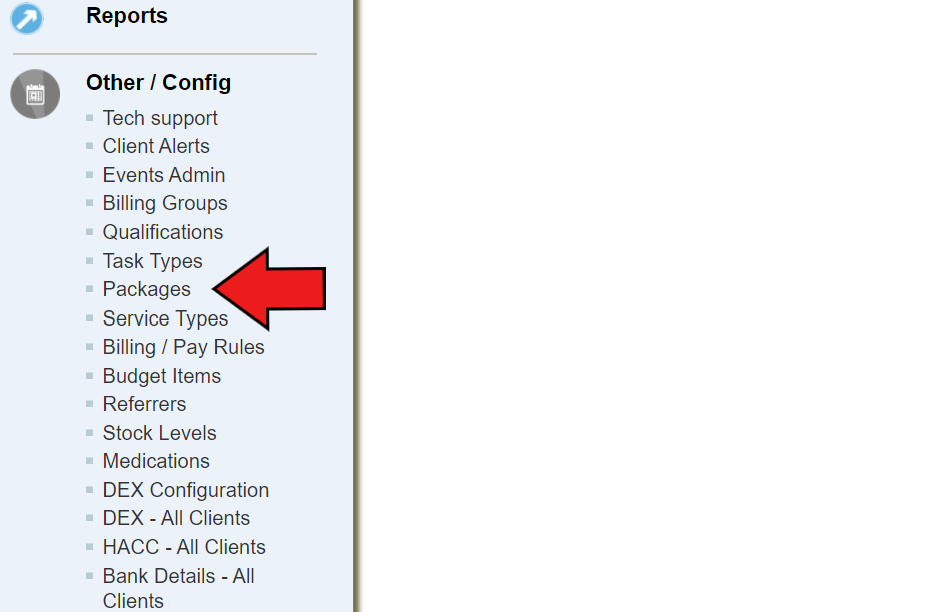
- On the left-side menu bar, scroll down to Other/config category, and click on “packages”
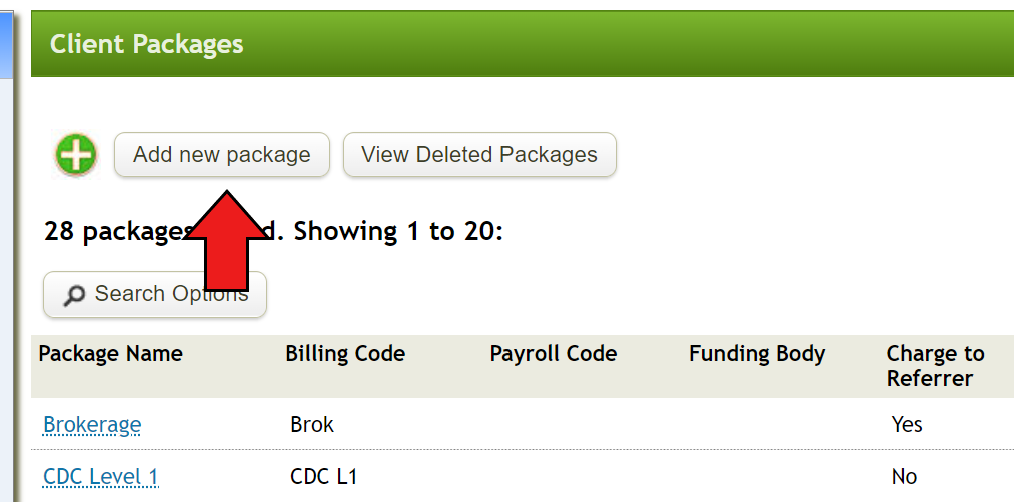
- Click on “add new package” on the main page
- Fill out blanks
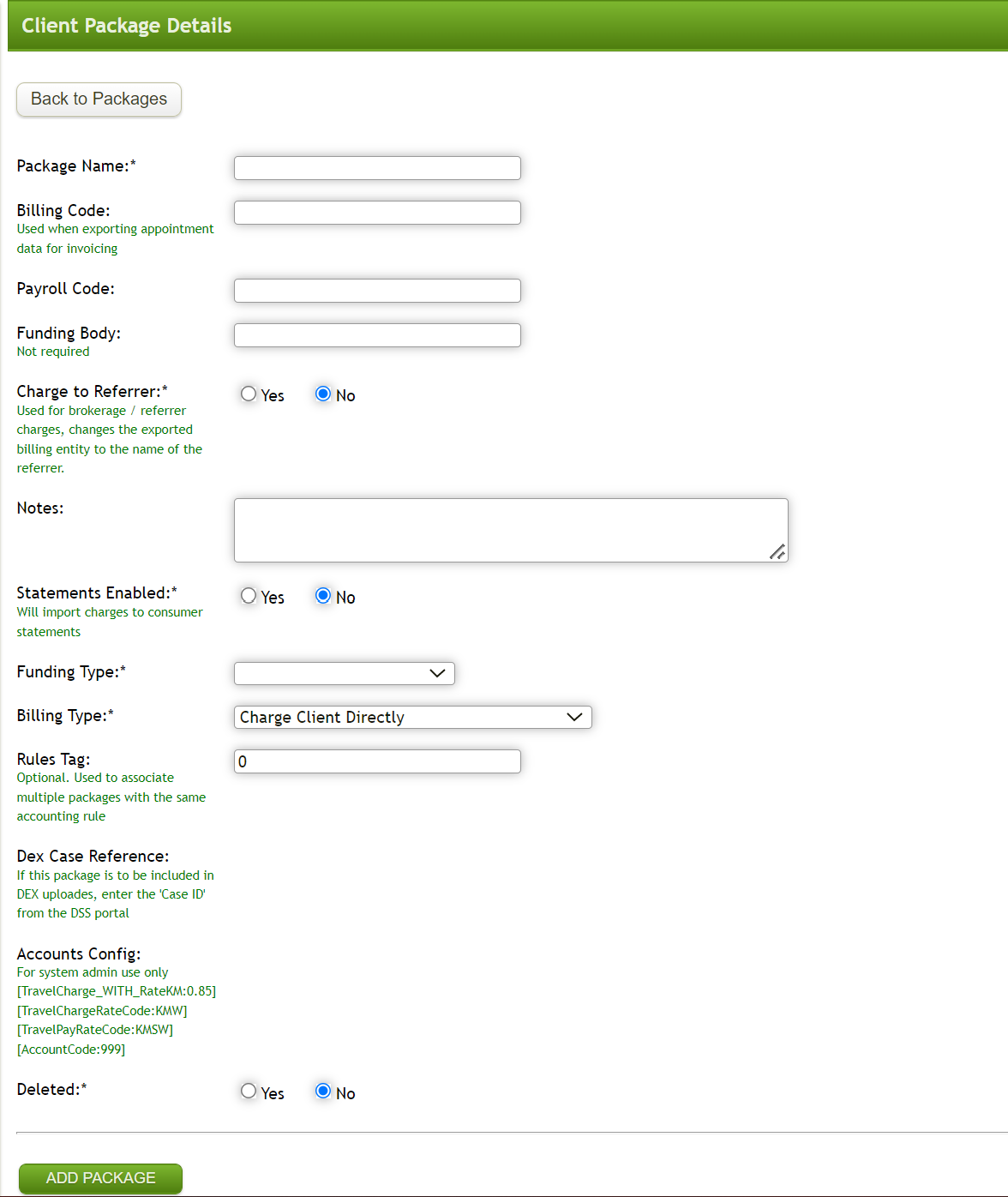
- Package Name
- Billing/Payroll code: Code that will show up when exporting appointment data for invoicing
- Funding Type/Billing Type: choose relevant option from the list based on package - Click on “Add Package”
Comments
0 comments
Please sign in to leave a comment.