
Service Types represent the units of care to be provided under a package to a client. It can define the billing rates, qualifications required and the costs expected through payroll.
Please find the below video or article on steps to add service types.
<Video>
<Article>
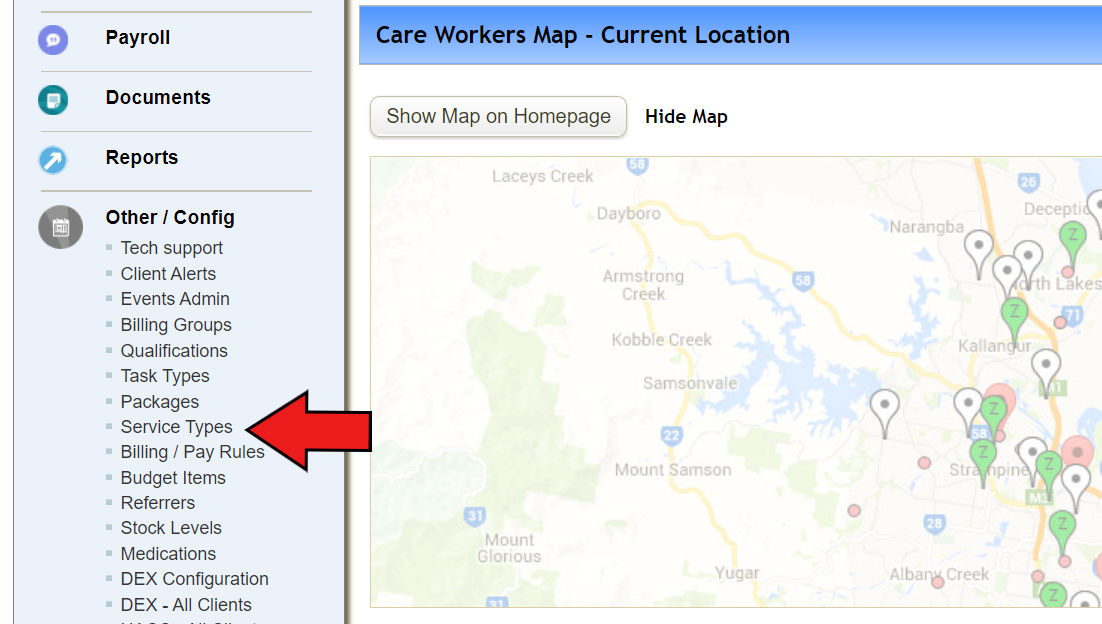
1. Click "Service Types" under Other Config menu on the side bar.
2. You can see existing service types list with few buttons at the top.
(If you want to know general information about service types, please click here.)
Click "Add new service type"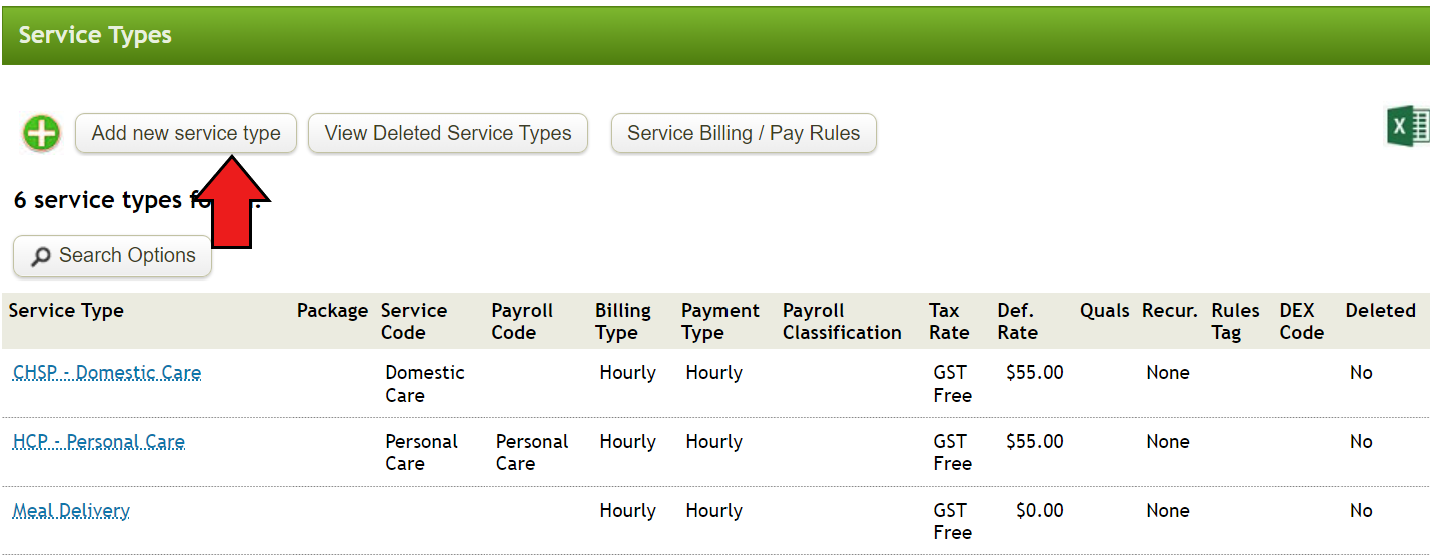
3. Fill out the necessary fields.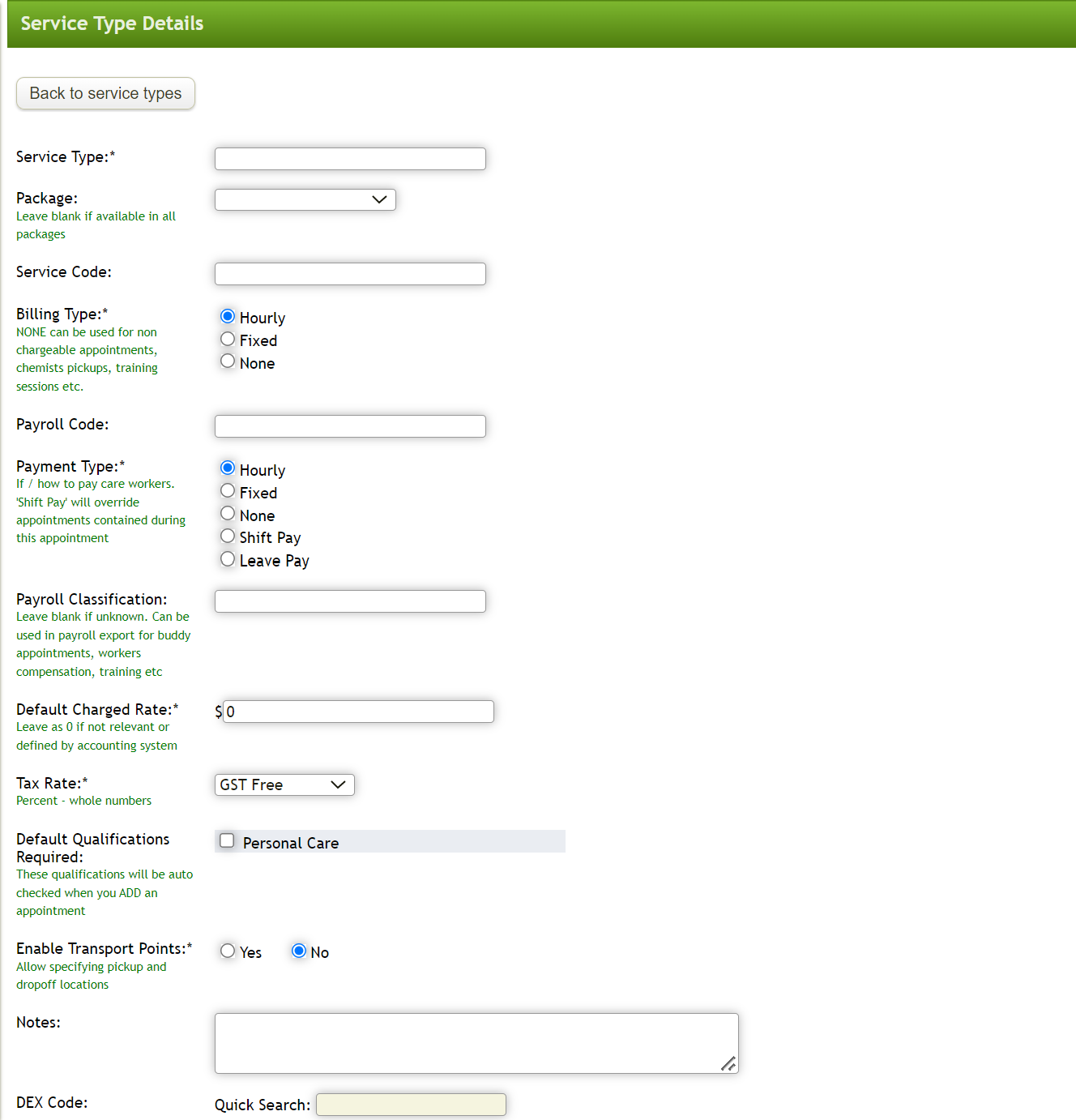
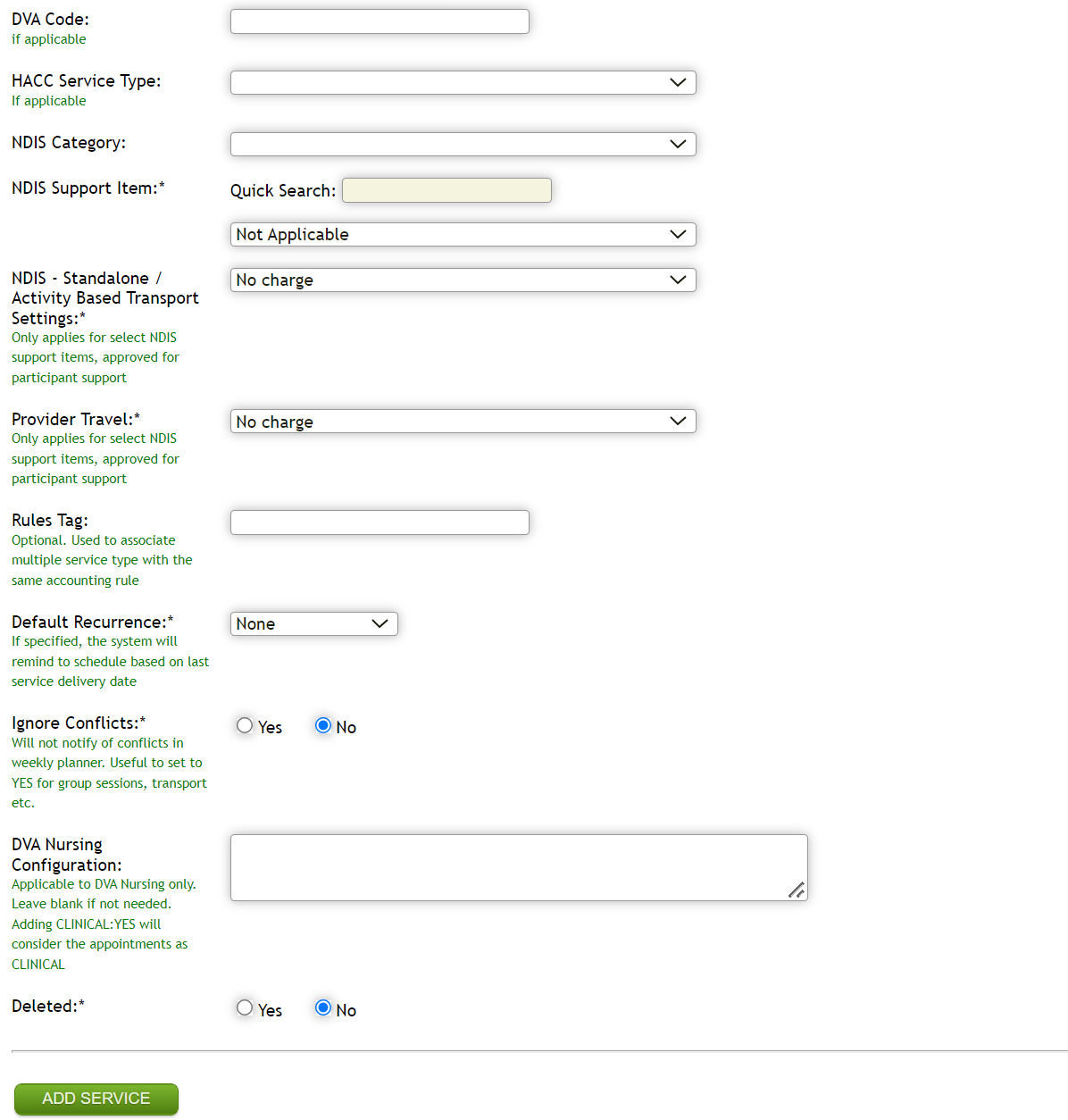
- Service Type
- Service Code: It's short form code to represent a service type throughout the system. This code will appear on exported file when importing data onto accounting system
- Billing/Payment Type: You can set this to ‘hourly’ most of the time, ‘fixed’ can be selected for any service that has fixed rate (i.e. sleepover allowance)
- Payroll Code: This code will appear on exported file when importing data onto accounting system
- Tax Rate
- Default qualifications required: qualifications to be added before adding service type
- Enable Transport Points: if enabled, you can select pickup/drop off point when creating service appointment
- A Notes field is provided to recording notes about the Service Type. It is not visible elsewhere in the system.
- DVA code – Provider Travel: This is to match codes between different funding bodies when applicable (i.e. Select relevant NDIS category and support item for NDIS service type)
3. Once mandatory/applicable fields are filled out, click on “Add Service” at the bottom
Once you add service type, you can also set up associated billing/payroll rules. Please click here to find about the feature.
Comments
0 comments
Please sign in to leave a comment.